Managing Plugins in FL Studio
If Xvox is not showing up in FL Studio, follow the steps below to fix it:
👉 Before following these steps...
Make sure you have successfully installed your plugins on your computer following these steps for your computer:
Step 1
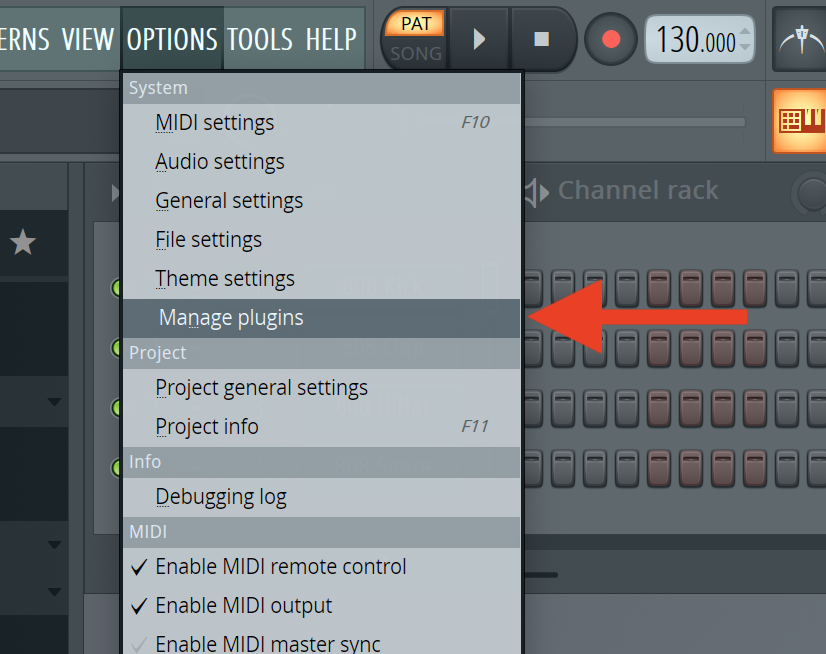
In the top menu bar of FL Studio, go to Options > Manage plugins
Step 2
Under Scan Options, select the options for:
- Rescan previously verified plugins
- Rescan plugins with errors
- Combine VST and VST3 versions of a plugin

Step 3
Click the "Find installed plugins" button in the top-left of the window. This may take a couple minutes for FL Studio to complete.

Step 4
After FL Studio finishes scanning your plugins, search for your plugin by name in the list. For example, if you're looking for "Xvox", it should look like this, with the Status of "ok":

You are now ready to use your plugins in FL Studio: click here for the steps to load your plugin in FL Studio.
⚠️ Status not showing "ok"?
If you have followed these steps, but the Status of Xvox is showing something other than "ok" - please contact our support team so we can help you get it up and running.